UDISE Plus Teacher Module Login | Step-by-Step Guide for Schools (2025–26)
Learn how to log in to the official UDISE Plus Teacher Module 🧑🏫, add or update staff records, correct qualifications, manage transfers, and reset access easily using your school UDISE code.
What Is UDISE Plus Teacher Module
The UDISE + Teacher Module is used by principals, school-level MIS users, and education coordinators across India to update teacher records for the current academic year. Through this module, you can add new teaching or non-teaching staff, edit profile details, manage service history (join/transfer/left), submit training records, and check qualification and subject status.
This guide helps you log in securely, eliminate login errors, configure your teacher dashboard, and complete your school’s annual UDISE+ data submission in time.
Who Is This For?
This step-by-step guide is specially prepared for:
What You Need to Log In to the UDISE+ Teacher Module
Tip for Teachers: If logging in for the first time, go to Profile > Security and change your system-generated MIS password.
What Happens After Logging In?
Once you’re logged in, you’ll be able to:

How to Log In to the UDISE Plus Teacher Module
This is the official way for teachers, headmasters, and school data operators to log in to the UDISE Plus Teacher Module and access their dashboard under the Ministry of Education’s UDISE+ system.
What You’ll Need Before You Begin
| Requirement | Source |
| 11-digit UDISE Code | Provided by your school / Block MIS |
| Login Password | Issued by your Block or District MIS Team |
| Mobile Number | Must be registered to receive OTPs if needed |
| Recommended Browsers | Chrome, Firefox, Edge for best results |
If your UDISE code is only 10 digits, add a leading “0” to make it work.
Official Login Portal
Go to https://udiseplus.gov.in/udiseteacher
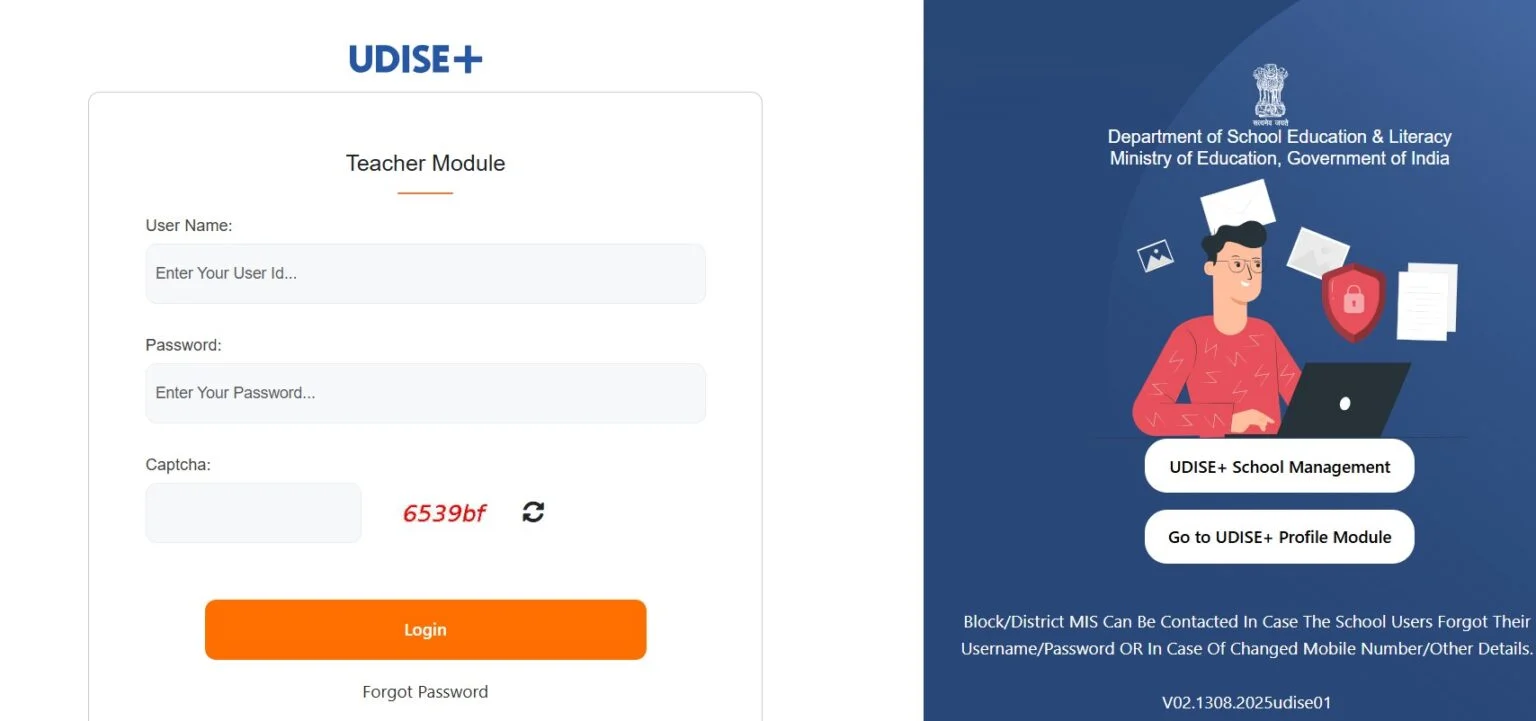
You’ll see a login screen with fields for UDISE Code, password, and a captcha.

Enter Your UDISE Code
Enter Your MIS-Issued Password
Solve the Captcha Code
Forgot Password or Lost Access?
Option 1: Use the “Forgot Password” Link
- Visit the login screen
- Click Forgot Password
- Enter your:
- UDISE User ID
- Registered Mobile Number
- Captcha
- Verify via OTP → Set new password
You must have a valid registered mobile number linked via the District MIS
Option 2: Reset Through Block/District MIS
If you:
Then contact your Block MIS or District MIS Coordinator.
They’ll help you reset and reissue login credentials.
Click the Orange ‘Login’ Button
If login fails: Double-check UDISE formatting + contact Block MIS for a new password if expired.
First-Time Login? Set These Up Immediately:
After logging in, do NOT start uploading teacher data until these steps are done.
A. Change Your Password
B. Confirm School Details
C. Assign Work Responsibilities

Adding & Managing Teacher Profiles in UDISE Plus
This is where most school data operators begin. 90% of your UDISE+ work happens right here, adding or updating teacher profiles, entering qualifications, and saving correct records.
Why This Is Important
Without complete teacher data:
How to Add a New Teacher
Go to: Teachers ➔ Add New
Fill the fields in this order:
Then click Save & Next
Appointment & Subject Info
You’ll now enter:
Click Update to lock this section.
Enter Teaching/Training Background
Include CTET/TET status if applicable.
Save profile before moving on.
Common Entry Mistakes to Avoid
Managing Staff Transfers, Left, and Deputations (Dropbox Use)
Whenever a teacher leaves school or is transferred, their status must be changed in UDISE+. This helps the government avoid duplicate, inactive, or ghost staff records, especially during cross-state verification.
Transfer / Deputation Process
Once a staff member leaves, retires, or transfers, this section helps you update your data correctly and avoid duplicate entries.
Step 1: Open the teacher’s record
Step 2: Click on Edit ➝ Status = Transfer/Left/Deputation
Step 3: Choose reason from dropdown:
| Status | Reason Options |
| Transfer | Shifted to another school |
| Left | Resigned, Retired |
| Deputation | Assigned elsewhere temporarily |
Enter Last Working Date and type any final remarks.
Click Save.
Send to Dropbox
Staff leaving must be sent to Dropbox using reason codes:
| Code | When to Use |
| Dropbox – Active | Retirement, Transfer, Left Job |
| Dropbox – Inactive | Death, Wrong Entry, Duplicate |
| Dropbox – Restored | If previously sent and now rejoining |
Once in Dropbox, new school can Import that profile using UDISE Code + DOB.
If you skip the Dropbox step, the teacher may remain active in your school records and affect certification.
Add Non-Teaching, VTP & Guest Faculty (NSQF Roles)
UDISE+ supports more than teaching staff — you must also document non-teaching roles, VTP staff, and resource faculty under the NSQF framework (especially in secondary schools).
Add Non-Teaching Staff
Go to: Menu ➝ Add Non-Teaching
Enter:
Add VTP Staff (NSQF / Vocational Roles)
Go to: Add VTP ➝ Enter:
Staff is saved separately under Skill Staff reports in UDISE.
NSQF and Vocational Staff uploads are often skipped and can lead to under-reporting during program audits.
Head of School Mapping & Final Certification
Before a school can submit UDISE data to the Ministry, it must map a Head of School (HoS) and complete the certification flow.
How to Map Head of School (HoS)
Go to: HoS Mapping ➝ Search for Teachers ➝ Select
Choose existing staff member → Assign as HoS
Enter:
Click Save
Final Step: School Certification
Before final certification, school heads and cluster coordinators should download staff lists to double-check records for completeness and correctness.
Once all teachers and HoS data is correct:
- Go to Certification Tab
- Tick the Declaration
- Add Remarks (if any)
- Click “Certify”
Important Rules
- ANY changes after certification = auto change to “Not Certified”
- HoS must be assigned → Else portal blocks certification
- All staff profiles must be complete, including VTP/Non-Teaching
Common Login Issues in UDISE+ Teacher Module
Here’s how to fix frequent errors when logging in:
Invalid Credentials
Captcha Not Accepted
Captchas are case-sensitive. Try:
Account Locked or Expired Login
Too many failed attempts? Password expired?
- Use Forgot Password, or
- Ask Block/District MIS to unlock your account
Can’t Find “Teacher Module” After Login?
Sometimes the dashboard hides the Teacher Module by default:
- Log in normally
- Click on “Select Module” or Explore Tile section
- Choose UDISE+ Teacher Module
If it’s not visible, contact admin to assign module permissions.
FAQ – Quick Answers for Teachers & MIS Operators
What is my UDISE Plus Teacher Module username?
Your school’s 11-digit UDISE Code. Example: 08310901234
Who provides the login password?
Your password comes from your Block MIS or District-level Coordinators.
Can I log in without the registered mobile number?
Only possible if you remember your password.
For password resets, a registered mobile number is required.
Can I update the school’s infrastructure information?
No — that’s handled via the Profile & Facility Module,
which is separate from the Teacher Module.